
How to Save a Gemini Canvas as Markdown
I was working on a project the other night, using Google's Gemini to help brainstorm a technical plan. If you've used it recently, you've probably seen the "Canvas" feature. It pops up on the right side of your screen, rendering code and text beautifully. It looks great.
But then I actually finished the document, and I needed to get that text out of the browser and into my actual codebase. I looked around the sleek interface for a "Save as Markdown" button. It doesn't exist.
If you are trying to extract a Gemini Canvas as markdown, you usually attempt the naive solution first: you click inside the canvas, press Ctrl+A, and Ctrl+C. You paste it into your editor, and instantly realize your mistake. You don't get markdown. You get a formatting disaster—a jumble of lost line breaks, stripped headers, and weird spacing.
This actually matters. When you are pasting a technical plan or documentation back into an LLM, that formatting is highly important. Under the hood, LLMs are trained and optimized to read and write raw markdown text, not whatever rich-text soup the browser clipboard spits out.
If you Google for a solution to this, you'll find two terrible workarounds.
The first is the "official" route: click "Export to Google Docs," wait for it to open, and then go to File -> Download -> Markdown. This takes way too long, and worse, you are left with hundreds of useless, orphaned documents permanently cluttering your Google Drive.
The second is the "prompt engineering" route. You type the magic words: "Copy this entire canvas as markdown into a code block." This is surprisingly hit or miss. Because of escaping issues—code blocks nested inside other code blocks—the LLM often breaks the formatting halfway through. Plus, it takes a full minute to generate, wasting expensive GPU cycles in a datacenter somewhere just to print text that has already been calculated and is sitting right there on your screen.
We just want our text file.
The Solution: A Quick Userscript
To fix this annoyance permanently, I wrote a quick script that reaches into the page and downloads the raw markdown for you.
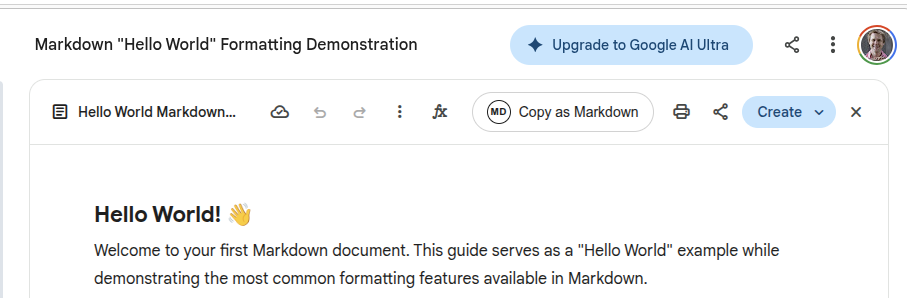
If you just want the tool, you can grab it from GitHub here: gemini-to-markdown.
To run it, you'll need Tampermonkey.
What is Tampermonkey? If you haven't heard of it, Tampermonkey is a popular, free browser extension (available for Chrome, Firefox, Safari, etc.) that acts as a user script manager. It basically allows you to inject tiny snippets of your own JavaScript into specific websites to change how they look or behave. It's the perfect tool for fixing minor UI annoyances on the web without having to build a full-blown browser extension.
How to Install It
Getting this set up takes about thirty seconds:
- Install Tampermonkey: Head over to your browser's extension store and install the Tampermonkey extension.
- Get the Script: Go to the gemini-to-markdown repository on GitHub.
- Install: Click on the
gemini-to-markdown.user.jsfile, and click the "Raw" button. Tampermonkey will automatically detect the script and pop up an install screen. Just click "Install". That's it. The next time you open a Gemini Canvas, you'll have a quiet, reliable way to extract your clean markdown, without the Google Drive clutter or the datacenter GPU waste.
Comments