
Zwibbler: A simple drawing program using Javascript and Canvas
Tested under Firefox 3.5.6 and Google Chrome 3.0.195.38
Introduction
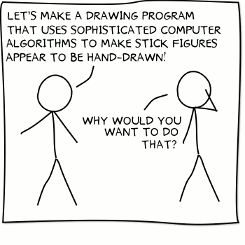
This project extends the technique I created for imprecise line-drawing to create an entire vector graphics application, similar to Inkscape. It is written almost entirely in Javascript, except for a server-side program that renders text.
See below if you are interested in the implementation and coding parts.
Features
- Download and share your drawings in PNG, PDF, or SVG formats.
- Box, circle, lines, and curve primitive shapes
- Shadows when supported by browser
- Text in several hand-drawn fonts rendered on the server
- Rotate & scale shapes individually or in groups
- Select colours using an HSV colour wheel.
- Unlimited levels of Undo/Redo
Usage
Users who are familiar with vector graphics programs such as CorelDRAW! or Inkscape will have no problem using it, because the some of the most common keyboard shortcuts work the same way. Otherwise, it will take some getting used to.List of keyboard shortcuts
The keyboard is the only way to do some things.
| C | Start drawing a new curve |
| L | Start drawing a new line |
| Ctrl+D | Duplicate selection |
| Page Up | Move selected shapes toward you |
| Page Down | Move selected shapes away from you |
| Home | Bring selected shapes to front |
| End | Send selecting shapes to back |
| Ctrl+G | Group selected shapes |
| Ctrl+Shift+G | Un-group selected shapes |
| + | Zoom in |
| - | Zoom out |
| Shift + | Restore normal zooming |
| Arrow Keys | Move around while zoomed-in |
Saving and loading
Drawings can be stored on the website by clicking on "Save". If you do not have an account, the drawings will be deleted in a few hours, or if you close your web browser. As soon as you create an account, the drawings will be transferred to long term storage.If you don't want to create an account, the "Save" option will also allow you to download your drawing as an image.
Drawing simple shapes
Click on the rectangle or circle tool in the toolbar, and the desired shapes will immediately appear in the upper left of the drawing area. You can then drag them to where you want to go.
No two shapes are alike. If you create two circles, they will be slightly different. However, if you duplicate a shape using Ctrl+D, the duplicate will be exactly the same.
Drawing lines and curves
To draw a line, click the line tool in the toolbar, then click anywhere in the drawing window to place the first point. You can then click again to place the second point, and so on. To end the line, double click. If you end the line or curve close enough to where you started it, then it will create a closed shape.
Hint: The line tool can be activated by pressing "L", and the curve tool can be activated by pressing "C".
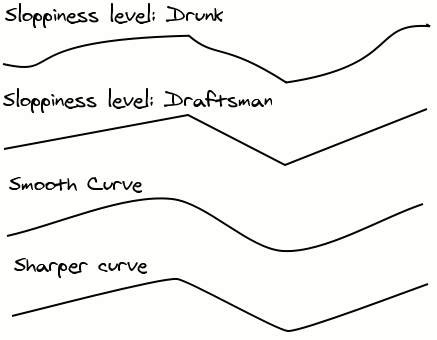
Lines have a sloppiness property that can be set after drawing it. To set the property, select on the line you have drawn. The options pertaining to the line will appear to the left of the drawing window.
Curves do not have sloppiness, but smoothness. By increasing smoothness, the curve is modified to make rounder corners.
Drawing text
Text is placed the same way as circles or rectangles. Click on the text tool, and some default text is placed in the upper left of the image. You can change what the text says by clicking on the text, and then modifying the "text" property that appears to the right of the canvas.
Example: Editing text using the properties area
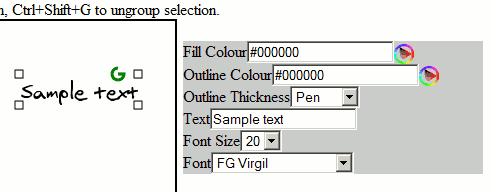
You can move, scale, or rotate text. However, in this version of the drawing software, scaling will result in loss of quality. Instead, change the font size in the properties area.
Selecting things
While not in line or curve mode, you can select things by dragging a box around them using the mouse. The box must fully enclose the shapes to select them. You can also add a shape to an existing selection by pressing the shift key while clicking it.
Overlapping shapes
You can move a shape to the front using the Home key on the keyboard. Send it to the back using the End key.Point edit mode
For some shapes, you can move the corners around by entering "Edit" mode. You can enter edit move by clicking on an already-selected object. In edit mode, the corners that you can move are highlighted using a blue box.Example: Point edit mode
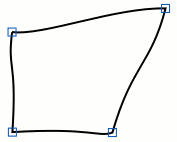
Delete
Delete all objects in the selection by hitting the Delete key on the keyboard.Grouping
To avoid having to repeatedly select complex groups of shapes, you can "group" the current selection using Ctrl+G. Now, when you click on any one of the group members, all will be selected. You can break apart any selected groups using Ctrl+Shift+G.
Copy/Paste
You can copy pieces of your drawings between documents and browser windows. While there are shapes selected, click on "Copy" and they will be transferred to the zwibbler clipboard, stored in your browser. You can then open another document later or in another browser window and paste the shapes there.Duplicate
While there are shapes selected, you can duplicate them by pressing Ctrl+D. Copies of the objects will appear over the existing ones. You will have to move them aside to see the effect.Zooming in
Increase magnification by pressing +. Decrease by pressing -. Restore to original magnification by pressing Shift+'+'. While zoomed in, you can move around using the arrow keys on the keyboard.Bugs
The last 10% of work to make a polished program takes 90% of the time. I know about these bugs:- Scaling text reduces its quality.
- There's no way to set the background colour of a drawing.
Implementation Notes
I should write something about the implementation. Hmm, the undo stack is pretty standard stuff but may be new to some people. But the thing I was happiest to find was the concept of abstracted Mouse Behaviours.
Design patterns for mouse behaviour are slim pickings. When a novice programmer designs a mouse-intensive application, he or she will tend to make a very complex function that deals with all possible cases when the mouse is clicked or moved. It can quickly grow to be unmaintainable.
To deal with this complexity, we separate the possible states of the system into various MouseBehaviour objects, which implement onMouseDown(x,y), onMouseUp(x,y), and onMouseMove(x,y). (This is a variation on the State design pattern). The default mouse behaviour is the selection mode. If you press the mouse button while over something, it then replaces the default mouse behaviour with a new mouse behaviour. When you lift the button, the new behaviour ends and reverts back to the previous behaviour. This keeps everything simple. There are several mouse behaviours:
- DefaultBehaviour -- Depending on where you click, it replaces the current behaviour with a new instance of one of the other behaviours.
- SelectBoxBehaviour -- if you click on an empty area of the image, it handles drawing the select box. When you lift the button, it selects everything in the rectangle you have drawn.
- TransformSelection -- if you clicked on a selection handle, then it transforms the selected shapes as you move the mouse.
- MoveEditNodeBehaviour -- If you click a blue edit node, then it moves the node.
- DrawLinesBehaviour -- Places points in a line shape until you double-click to end it.
Comments